Building Nothing Vault: A Photo Vault for Android
I wanted a way to keep private photos hidden in plain sight. Most gallery vault apps are either ugly, unreliable, or ask for subscriptions. So I built my own — Nothing Vault.
The Concept
Nothing Vault is an Android app that looks like it has no purpose. The lock screen greets you with the word "Nothing" and a PIN pad. Enter the correct PIN and you're in your vault. Enter a wrong one and you get a decoy screen that says "There's nothing here. Close it and go about your day."
The app is designed to follow Nothing's design language — dark backgrounds, dot-matrix-inspired typography, glassmorphic cards with frosted glass effects, and purple accent (#6C63FF). It's minimal to the point of being invisible.
How It Works
Multi-Folder PIN System
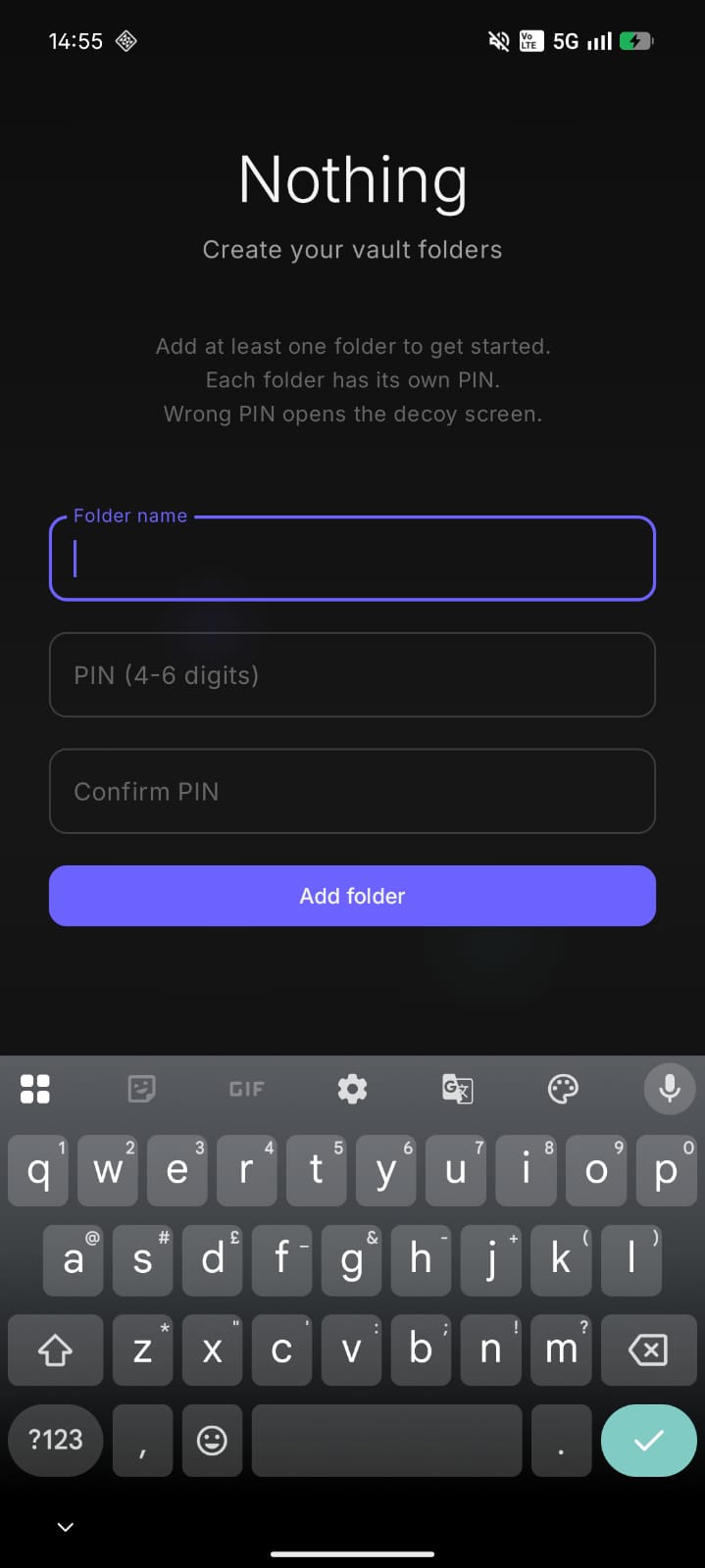
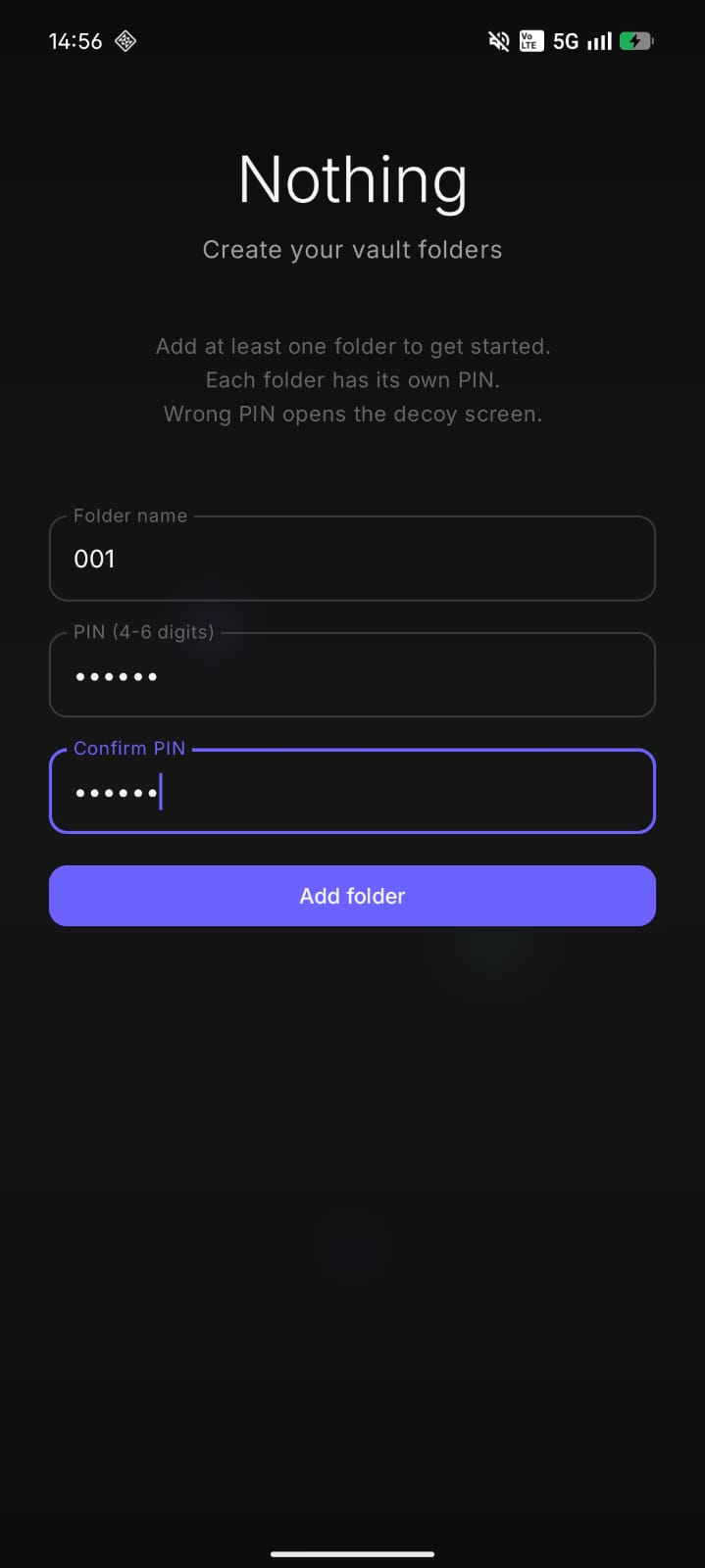
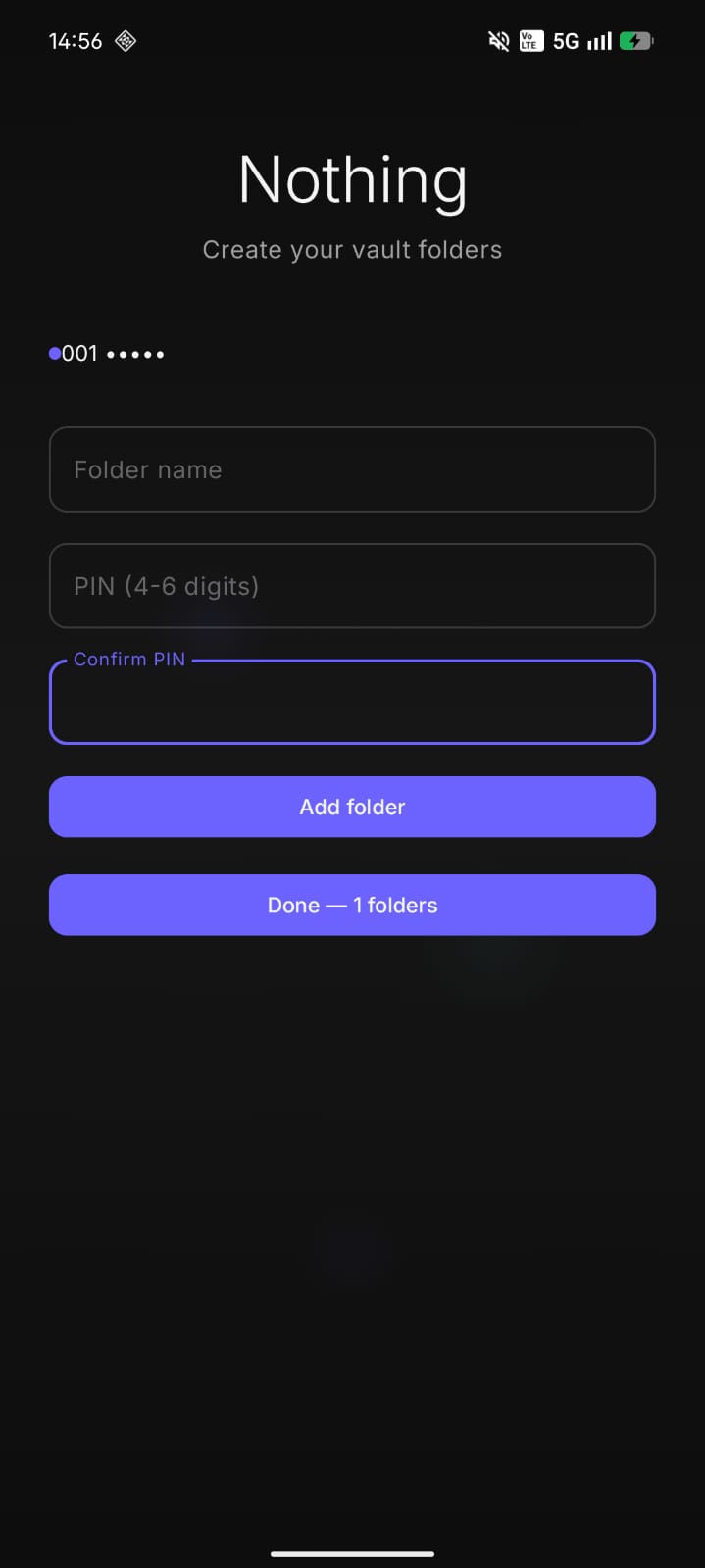
Each folder in the vault has its own PIN. On the setup screen, you create folders by name and assign a 4-6 digit PIN to each. PINs are hashed with PBKDF2WithHmacSHA256 using a per-folder randomly generated salt (16 bytes, 10,000 iterations). No PINs are ever stored in plaintext.
When you enter a PIN on the lock screen, the app iterates through all folders and checks each one using SecurityUtils.verifyPin(). Match found? You're in. No match after 6 digits? You're sent to the decoy screen.
AES-256-GCM Encryption
All imported photos are encrypted with AES-256 in GCM mode before being saved to disk. The encryption key is generated and stored in the Android KeyStore — hardware-backed, never directly accessible to the app as plaintext.
The flow for importing a photo:
- Read the image URI from the content provider
- Copy it to a temporary file
- Encrypt with AES-256-GCM using a key from KeyStore
- Generate a thumbnail (max 512px, JPEG quality 80)
- Delete the temp file
- Save the photo metadata (encrypted filename, IV, thumbnail path) to a JSON index
Each encrypted file has a 12-byte IV prepended. Decryption reads the IV first, then decrypts the rest with GCM authentication tag verification.
Biometric Authentication
If the device has a fingerprint sensor, you can assign biometric unlock to any folder. The app uses Android's BiometricPrompt API with BIOMETRIC_STRONG authentication. When enabled, the lock screen shows a fingerprint icon on the bottom row. Tapping it launches the system biometric dialog — on successful authentication, it opens the assigned biometric folder directly.
Decoy Screen
The decoy screen is the app's best feature. It's a completely blank screen with the word "Nothing" and a message saying the app has no purpose. Even the app's name in the launcher is just "Nothing." If someone forces you to unlock your phone, entering the wrong PIN makes the app look like a useless placeholder.
UI Components
I built several custom Compose components from scratch:
- GlassmorphicCard — A card with frosted glass effect using backdrop blur and semi-transparent overlays
- LiquidGlassBackground — An animated gradient background that shifts color slowly, creating a liquid-like effect
- PinPad — A custom numeric keypad with spring-animated press feedback and haptic vibration on each keypress
- PinDot indicators — Animated dots that scale up and change color as you type your PIN
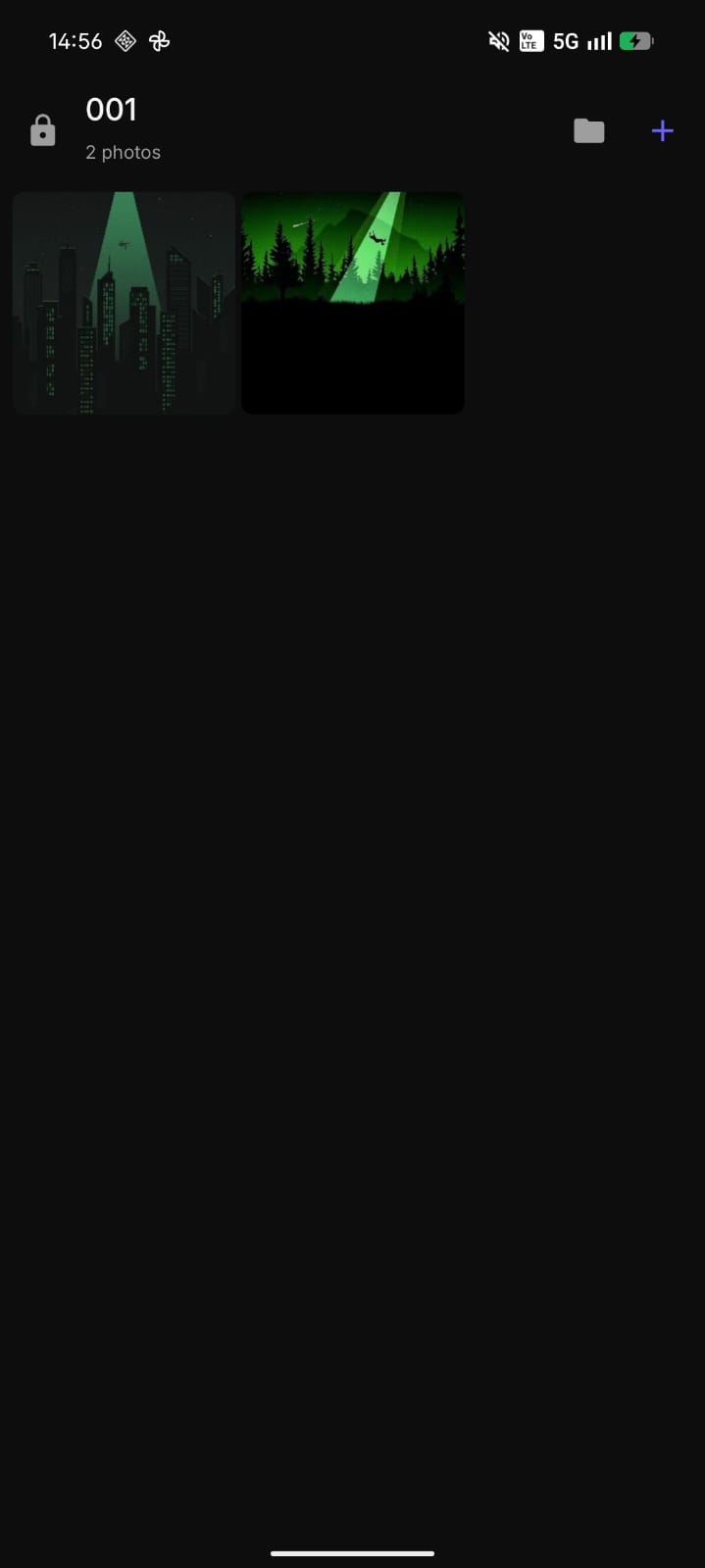
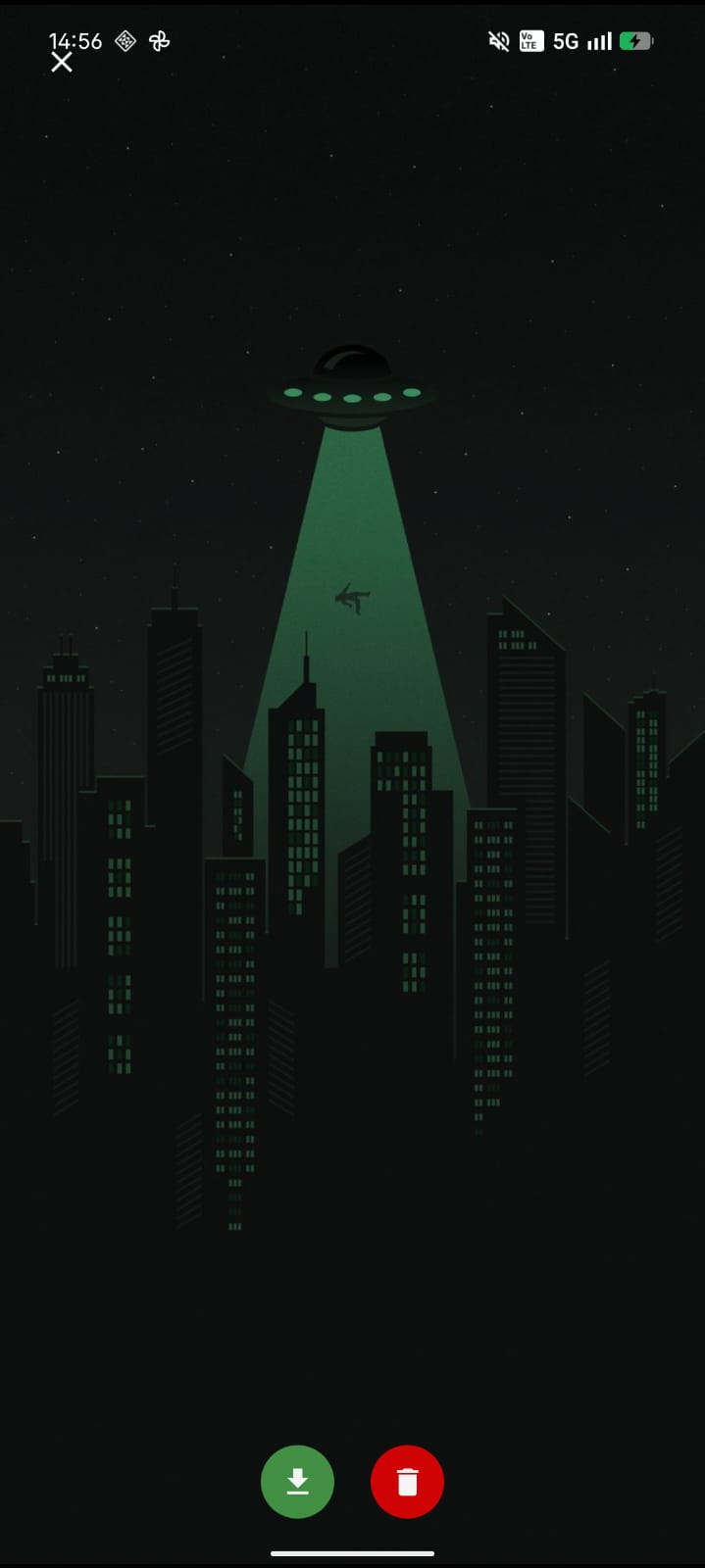
The gallery view uses a 3-column lazy grid with a smart pre-decryption cache. As you scroll, the app pre-decrypts thumbnails and full-resolution images ahead of your current viewport position, keeping up to 128 thumbnails and 16 full-resolution bitmaps in an LRU cache.
The Tech Stack
- Language: Kotlin
- UI: Jetpack Compose with Material 3
- Navigation: Navigation Compose with animated fade transitions
- Encryption: AES-256-GCM via javax.crypto, keys stored in Android KeyStore
- PIN Hashing: PBKDF2WithHmacSHA256 (10,000 iterations, 16-byte salt)
- Biometrics: AndroidX BiometricPrompt with BIOMETRIC_STRONG
- Secure Preferences: EncryptedSharedPreferences (AES256-SIV / AES256-GCM)
- Min SDK: 26 (Android 8.0)
- Target SDK: 34 (Android 14)
What I Learned
-
Android KeyStore is powerful but subtle. The key is created once and stored in hardware-backed storage. You can't extract it, but you can reference it by alias. The
KeyGenParameterSpecbuilder requires explicitly setting purposes, block modes, and padding schemes — get it wrong and you getInvalidAlgorithmParameterExceptionat runtime. -
BiometricPrompt needs an executor. The API requires a one-thread executor for the authentication callback. I used
Executors.newSingleThreadExecutor()and it works, but the callback runs on that thread — so UI updates need to be posted back to the main thread. -
GCM mode needs unique IVs. AES-GCM is deterministic if you reuse the same IV and key. I generate a fresh 12-byte IV for every encryption operation and store it alongside the encrypted file. The IV is not secret — it just needs to be unique per key.
-
Thumbnail caching is essential for performance. Decrypting full-resolution images for the grid view would be unusably slow. I generate small thumbnails (max 512px) at import time and cache them in memory with an LRU cache (LinkedHashMap with max 128 entries).
-
Jetpack Compose animations are surprisingly capable. The PIN dot animations use
animateColorAsStateandanimateFloatAsStatewith spring physics (dampingRatio = 0.5— very bouncy). The navigation usesfadeIn/fadeOutwithtween(300). It all feels smooth without any custom animation code.
What's Next
The app is open source on GitHub. Current plans include:
- Adding a "recover to gallery" feature that decrypts photos back to the device's camera roll
- Supporting video files (currently only images)
- Adding a fake calculator or notes app as an alternative decoy
- Supporting pattern unlock alongside PIN
Nothing Vault taught me that the best security is invisible. If no one knows the app exists, they can't target it. And that's the whole point.
Screenshots